
Changing accounting software can feel like moving an entire office. Customer records, supplier balances, invoices, bank transactions and years of financial history all need careful handling.
Professional Sage to QuickBooks Data Migration helps businesses move suitable accounting records into QuickBooks Online without rebuilding everything manually. However, Sage and QuickBooks Online store information differently. Therefore, we can transfer some records directly. However, we may need to clean, map or adjust others before migration. In some cases, we may also recommend archiving certain records.
This guide explains which records experts can usually transfer, which records require extra work and how they check the final accounts for accuracy.
What Is Sage to QuickBooks Data Migration?
Sage to QuickBooks Data Migration is the process of extracting financial records from Sage and converting them into a format that QuickBooks Online can accept.
A professional migration normally includes:
- Reviewing the Sage company file
- Agreeing on the migration period
- Cleaning unnecessary or duplicated records
- Mapping Sage nominal codes to QuickBooks accounts
- Converting supported transactions
- Importing the agreed data
- Checking balances and reports
- Correcting migration differences
- Preparing QuickBooks Online for future use
The exact scope depends on the Sage product, company file, number of transactions, financial history and QuickBooks Online plan.
Why Do Businesses Move from Sage to QuickBooks Online?
Businesses may decide to move because they want easier online access, simpler collaboration or better links with other business applications.
Common reasons include:
- Accessing accounts through a web browser
- Allowing accountants and team members to work in one system
- Connecting eligible bank and credit card accounts
- Creating and sending invoices online
- Managing bills and supplier payments
- Using connected business applications
- Viewing current financial reports
- Reducing reliance on a desktop installation
- Supporting remote or growing teams
Although choosing the right software is important, the quality of the migration matters just as much. Without careful planning, the main balances may appear correct while important transaction details remain incomplete.
What Determines Which Data Can Be Transferred?
Not every Sage migration has the same scope. Experts first need to understand:
- Which Sage product and version you use
- Whether your accounts use cash or accrual accounting
- How many years of data you want
- How many transactions the company contains
- Whether you use multiple currencies
- Whether you track departments, projects or cost centres
- Whether you manage inventory
- Whether invoice attachments are important
- Whether the Sage file contains errors
- Whether QuickBooks Online already contains data
This review helps establish what can be transferred and what may need a separate solution.
What Data Can Experts Transfer from Sage to QuickBooks Online?
The following records can often be included in a professional Sage to QuickBooks Data Migration.
1. Chart of Accounts
The chart of accounts controls how financial transactions are grouped for reporting. Sage commonly uses nominal codes, while QuickBooks Online uses accounts and account types.
Experts can usually transfer:
- Account names
- Nominal codes
- Account numbers
- Account types
- Income accounts
- Expense accounts
- Asset accounts
- Liability accounts
- Equity accounts
The account structure should be reviewed before migration. Old, duplicated or incorrectly classified codes can make future reporting difficult.
Some Sage codes may also need to be combined or mapped to a different account type in QuickBooks Online.
2. Customer Records
Customer records can normally be transferred so that the business does not need to create every contact again.
Transferable details may include:
- Customer name
- Business name
- Contact person
- Billing address
- Delivery address
- Email address
- Telephone number
- Account reference
- Payment terms
- Credit limit
- Outstanding balance
Inactive or duplicate customers should be reviewed before the data is moved. A cleaner customer list makes QuickBooks Online easier to manage.
3. Supplier Records
Supplier details can also be transferred.
These may include:
- Supplier name
- Business address
- Contact person
- Email address
- Telephone number
- Account reference
- Payment terms
- Outstanding balance
Experts should compare supplier balances with the aged creditors report before approving the migration.
4. Sales Invoices
Historical and outstanding sales invoices can often be moved into QuickBooks Online.
The transferred information may include:
- Invoice number
- Customer name
- Invoice date
- Due date
- Product or service description
- Quantity
- Unit price
- Net amount
- VAT amount
- Gross amount
- Account allocation
- Payment status
Outstanding invoices are especially important because they show how much customers owe the business at the conversion date.
Paid invoices may also be transferred when the company needs detailed historical reporting.
5. Customer Credit Notes
Customer credit notes can normally be included.
Transferable information may cover:
- Credit note number
- Customer details
- Credit date
- Description
- Nominal account
- VAT amount
- Total credit value
- Invoice allocation
Allocations should be checked so that the customer balance remains correct.
6. Supplier Bills
Outstanding and historical supplier bills may be transferred.
The data can include:
- Supplier name
- Bill reference
- Bill date
- Due date
- Expense or asset account
- VAT treatment
- Net amount
- VAT amount
- Total amount
- Payment status
The total value of outstanding bills should match the Sage aged creditors report.
7. Supplier Credits
Supplier credit notes may also be moved into QuickBooks Online.
Experts should check whether each credit is:
- Fully allocated
- Partly allocated
- Unallocated
- Linked to the correct supplier
- Posted to the correct account
- Using the correct VAT treatment
Unallocated supplier credits can affect aged creditor reports even when the overall balance is correct.
8. Customer and Supplier Payments
Payments can often be transferred and matched against the related invoices or bills.
This can include:
- Customer receipts
- Supplier payments
- Part payments
- Credit allocations
- Refunds
- Payments covering several transactions
Where possible, experts preserve the connection between a payment and the original transaction.
If Sage contains incorrectly allocated payments, QuickBooks Online may show them as separate entries. Experts must then match these payments manually after migration.
9. Bank Transactions
Historical bank activity can usually be included within the accounting transactions.
This may cover:
- Customer receipts
- Supplier payments
- Bank transfers
- Direct debits
- Standing orders
- Bank fees
- Interest received
- Interest paid
- Other money received
- Other money spent
The closing bank balances in QuickBooks Online should match Sage at the conversion date.
Previous bank reconciliation history may not transfer in its original form. The opening position must therefore be reviewed before live bank feeds are connected.
10. Journal Entries
Manual journals can often be moved into QuickBooks Online.
These may include:
- Accruals
- Prepayments
- Depreciation
- Payroll summary journals
- Corrections
- Director loan entries
- Finance adjustments
- Year end journals
- General ledger entries
Reversed journals and entries posted directly to customer or supplier control accounts can be more difficult to convert. These transactions may require separate treatment.
11. Opening Balances
Businesses do not always need every historical transaction. In this situation, experts can transfer opening balances at an agreed date.
Opening balances may include:
- Bank balances
- Customer balances
- Supplier balances
- Fixed asset values
- Loan balances
- Tax balances
- Other assets
- Other liabilities
- Share capital
- Retained earnings
This approach gives the business a clean starting point in QuickBooks Online.
However, the detailed transactions from earlier periods will remain in Sage or in archived reports.
12. Historical Transactions
Businesses may choose to transfer one, two or several complete financial years.
Historical records may include:
- Sales invoices
- Customer payments
- Supplier bills
- Supplier payments
- Bank transactions
- Credit notes
- Journals
- Account adjustments
Historical migration can help with:
- Comparing financial periods
- Reviewing customer activity
- Checking previous supplier spending
- Preparing management reports
- Supporting an audit
- Answering questions about earlier transactions
- Reviewing business growth
The chosen migration method, file size and agreed service determine how many years of data experts can transfer.
13. Products and Services
Products and services can often be transferred where the records are compatible.
Transferable details may include:
- Item name
- Product code
- Description
- Sales price
- Purchase cost
- Income account
- Expense account
- VAT treatment
Duplicate and inactive items should be removed where appropriate. This prevents the new system from becoming cluttered before the business starts using it.
14. Inventory Information
Basic inventory data may be transferable, depending on the Sage version, QuickBooks Online plan and migration method.
Possible records include:
- Product names
- Product codes
- Descriptions
- Quantity on hand
- Average cost
- Sales price
- Inventory value
Inventory requires careful testing because Sage and QuickBooks Online may calculate stock values differently.
The quantity and value at the conversion date should be compared against Sage inventory reports.
15. Departments, Projects and Cost Centres
Many Sage users track income and costs by department, project or cost centre.
QuickBooks Online uses different features for this type of reporting. Depending on the chosen plan and business needs, Sage tracking information may be mapped to:
- Classes
- Locations
- Projects
- Customers
- Subcustomers
- Custom reporting structures
This mapping should be agreed before the migration begins.
If Sage transactions contain several departments within one transaction, QuickBooks Online may not reproduce the structure in exactly the same way.
16. VAT Transaction Details
VAT amounts attached to sales and purchase transactions can often be included.
This may cover:
- VAT rates
- Net values
- VAT values
- Gross totals
- Sales VAT
- Purchase VAT
- VAT control balances
However, previous VAT return submissions may not appear as completed filings in QuickBooks Online.
After migration, experts should:
- Confirm the VAT registration number
- Review the VAT scheme
- Check VAT codes
- Reconcile the VAT control account
- Confirm the opening VAT position
- Review the next VAT return period
- Check Making Tax Digital settings where relevant
The first VAT return after migration often requires additional attention.
17. Foreign Currency Transactions
Foreign currency records may be transferred when the migration method supports them.
Experts may need to review:
- Customer currencies
- Supplier currencies
- Foreign bank accounts
- Original transaction values
- Exchange rates
- Home currency values
- Realised currency gains and losses
- Unrealised currency gains and losses
- Outstanding foreign balances
Multicurrency must be configured correctly in QuickBooks Online. The business should confirm this before importing foreign currency transactions.
18. Fixed Asset Balances
The financial balances connected with fixed assets may be transferred through the chart of accounts and journals.
These can include:
- Asset cost
- Accumulated depreciation
- Current year depreciation
- Disposal entries
- Net book value
However, the complete Sage fixed asset register may not transfer as a working register.
Experts may need to recreate asset descriptions, purchase dates, useful lives and depreciation methods or manage them separately after migration.
19. Payroll Summary Information
Detailed payroll records do not normally transfer as a complete working payroll system.
However, experts may bring across payroll related accounting totals through journals, including:
- Gross wages
- Employer National Insurance
- Employee deductions
- Pension costs
- Payroll liabilities
- Net wages
- Payroll payments
Experts may need to set up employee records, tax codes, pay rates and year to date payroll details separately in the new payroll system.
What Sage Data May Not Transfer Directly?
Some data types may not have a direct destination in QuickBooks Online.
Common examples include:
- Detailed payroll history
- Previous VAT return submissions
- Bank reconciliation history
- Custom invoice templates
- Custom statement templates
- Memorised transactions
- Budgets
- Deleted transactions
- Reversed journals
- Sales orders
- Purchase orders
- Estimates and quotations
- User permissions
- Full fixed asset registers
- Sage audit trail details
- Some project records
- Some inventory settings
- File attachments
Whether these records can be included depends on the migration tools and additional services available.
Can Attachments Be Transferred?
Attachments require special attention.
Standard migration tools may not move:
- Supplier invoice scans
- Customer purchase orders
- Expense receipts
- Contracts
- Transaction notes
- Supporting documents
A specialist migration provider may be able to extract and attach some documents separately. This depends on the Sage product, file format and number of attachments.
If attachments cannot be moved, they should be exported and stored in a secure archive with clear references.
Businesses should never assume attachments are included without seeing them listed in the migration scope.
How Experts Handle Unsupported Data
Data that cannot be imported directly does not always need to be abandoned.
Experts may:
- Export it into spreadsheets
- Save reports as PDF files
- Keep a secure Sage backup
- Recreate essential records manually
- Import summary balances
- Attach documents after the main conversion
- Store historical information in a separate archive
- Use a connected QuickBooks application where suitable
How often the business uses the information and whether tax, audit or legal rules require it will determine the right approach.
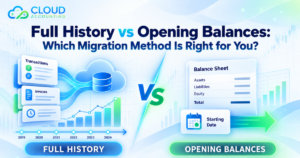
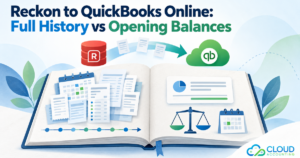
Full Historical Migration or Opening Balances?
One of the most important decisions is how much history to transfer.
Full Historical Migration
A full historical migration may be suitable when:
- Detailed past reporting is important
- Customers regularly ask about old invoices
- Supplier history is needed
- Management compares several financial years
- The business may face an audit
- Transaction level details must remain available
This option provides more information in QuickBooks Online but normally requires more preparation, conversion work and checking.
Opening Balance Migration
An opening balance migration may be suitable when:
- Older transactions are rarely used
- The Sage file contains poor quality data
- The business wants a cleaner account structure
- Historical records can be archived securely
- Only open invoices, bills and current balances are required
This approach is usually simpler, but users will need to access Sage or archived reports when they need older details.
How Sage Data Is Mapped to QuickBooks Online
Data mapping decides where each Sage record will appear in QuickBooks Online.
Examples include:
| Sage record | Possible QuickBooks Online destination |
| Nominal code | Account |
| Customer | Customer |
| Supplier | Supplier |
| Department | Location or class |
| Project | Project or class |
| Sales invoice | Invoice |
| Purchase invoice | Bill |
| Sales credit | Credit note |
| Purchase credit | Supplier credit |
| Bank receipt | Deposit or payment |
| Journal | Journal entry |
Incorrect mapping can affect financial reports even when the total balances appear correct. Experts should document and review the mapping before importing the final data.
The Sage to QuickBooks Data Migration Process
A professional migration normally follows several stages.
Stage 1: Initial Assessment
The migration team reviews the Sage file and confirms:
- Sage product and version
- Company file size
- Transaction volume
- Number of financial years
- Required data types
- VAT setup
- Currency requirements
- Inventory requirements
- Department or project tracking
- Desired conversion date
Stage 2: Migration Planning
The business and migration provider agree on:
- Data to be transferred
- Data to be excluded
- Historical period
- Cut off date
- QuickBooks Online plan
- Expected timeline
- Staff responsibilities
- Post migration checks
Stage 3: Sage Data Preparation
The Sage file should be cleaned before extraction.
Preparation may include:
- Completing bank reconciliations
- Matching payments to invoices
- Reviewing aged debtors
- Reviewing aged creditors
- Correcting suspense entries
- Removing duplicate contacts
- Checking VAT balances
- Repairing file errors
- Saving final reports
- Creating a complete backup
Stage 4: Data Extraction and Conversion
The agreed records are extracted from Sage and converted into a structure suitable for QuickBooks Online.
Experts review field formats, account mappings, tax treatments and transaction relationships during this stage.
Stage 5: Test Migration
A test migration may be completed for large or complex files.
Testing helps identify:
- Unsupported records
- Incorrect account mapping
- Missing contacts
- Date format problems
- VAT differences
- Currency issues
- Duplicate entries
- Reporting differences
Stage 6: Final Migration
Once the business approves the mapping and test results, experts import the final Sage data into QuickBooks Online. During the agreed conversion window, the business should avoid entering new transactions into either system unless the team has agreed on a clear process.
Stage 7: Reconciliation and Review
The final QuickBooks Online reports are compared with Sage.
Any differences should be investigated before the migration is signed off.
Stage 8: QuickBooks Online Setup
After the data has been approved, the business may need to configure:
- Company details
- VAT settings
- Financial year
- Bank feeds
- User permissions
- Invoice settings
- Payment options
- Classes or locations
- Connected applications
- Regular reports
Which Reports Should Be Compared?
A migration should not be approved based only on the closing bank balance.
Experts should compare:
- Trial balance
- Balance sheet
- Profit and loss report
- Aged debtors
- Aged creditors
- Bank balances
- VAT control account
- Customer balances
- Supplier balances
- Retained earnings
- Loan balances
- Fixed asset balances
- Inventory value where included
Reports should be produced using the same date range and accounting basis in both systems.
Any difference should have a clear explanation.
Common Migration Problems
Several issues can make a migration more difficult.
Poor Data Quality
Duplicated contacts, incorrect nominal codes and unresolved suspense entries can create problems in QuickBooks Online.
Unreconciled Bank Accounts
If Sage bank accounts are not reconciled, it becomes difficult to confirm whether the transferred balance is accurate.
Unmatched Payments
Payments that are not linked to invoices or bills may appear separately after conversion.
Incorrect Account Classification
A Sage nominal code may be assigned to the wrong QuickBooks account type. This can change how it appears in financial reports.
VAT Differences
Different VAT settings or missing tax codes can affect the first VAT return after migration.
Existing QuickBooks Data
Importing into a QuickBooks Online company that already contains transactions can create duplicates and balance differences.
Missing Attachments
Businesses may discover too late that scanned invoices and receipts were not part of the standard transfer.
Unclear Migration Scope
Terms such as “complete migration” can be misleading unless the included data is listed clearly.
How Long Does Sage to QuickBooks Data Migration Take?
The time required depends on:
- Number of financial years
- Transaction volume
- File condition
- Number of companies
- Inventory requirements
- Currency requirements
- Departments and projects
- Attachments
- Payroll journals
- Required corrections
- Review and approval time
A simple opening balance migration may take less time than a detailed migration containing several years of transactions.
The timeline should include preparation, conversion, checking and corrections. Importing the file is only one part of the work.
How Much Does the Migration Cost?
The cost of Sage to QuickBooks Data Migration depends on the amount and complexity of the data.
Pricing may be affected by:
- Number of years
- Number of transactions
- Number of Sage companies
- Customer and supplier volume
- Inventory records
- Multiple currencies
- Departments and projects
- Attachments
- Payroll summary work
- Data cleaning
- QuickBooks setup
- Training and support
A proper quotation should explain exactly what is included. A low headline price may cover only opening balances and outstanding transactions.
How to Choose a Migration Expert
Before appointing a provider, ask:
- Which Sage products do you support?
- What data will be transferred?
- How many years are included?
- Will invoices and bills remain detailed?
- Will payments remain matched?
- Can attachments be included?
- How will departments and projects be mapped?
- How will VAT balances be handled?
- Which reports will be compared?
- What happens if differences are found?
- Is QuickBooks setup included?
- Will we receive support after completion?
The provider should give clear answers before receiving access to your accounting records.
Why Professional Migration Matters
Manual imports may appear simple, but accounting data contains relationships that spreadsheets do not always show clearly.
For example:
- A payment must be linked to the correct invoice
- A supplier credit must reduce the correct balance
- VAT must be posted to the correct control account
- A journal must use the correct account type
- A foreign transaction must retain the right value
- An opening balance must not duplicate historical activity
Migration experts understand both the source data and the accounting result that QuickBooks Online must produce.
Frequently Asked Questions
Can all Sage data be moved to QuickBooks Online?
No. Experts can usually transfer most core accounting records, but QuickBooks Online does not directly match every Sage feature. Therefore, experts may need to recreate or summarise some records or archive them separately.
Can experts transfer several years of Sage history?
Yes, several years may be transferred when the file, migration method and project scope support it. More history normally means more conversion and checking work.
Can customer and supplier balances be transferred?
Yes. Customer and supplier records, outstanding invoices, bills, credits and balances can usually be included.
Will paid invoices appear in QuickBooks Online?
They can be included when detailed historical transactions form part of the agreed migration scope. An opening balance migration may include only unpaid invoices and bills.
Can Sage attachments be transferred?
Attachments are not always included in standard migration services. A specialist provider may be able to extract and reattach some documents separately.
Does Sage payroll move to QuickBooks Online?
Detailed employee payroll records do not normally transfer as a working payroll system. Payroll accounting totals may be migrated through journals, while employee records must be set up separately.
Will previous VAT returns appear in QuickBooks Online?
Experts may transfer previous VAT transaction values, but QuickBooks Online may display completed VAT filing history differently. Therefore, experts should carefully check the opening VAT position and the first VAT return after migration.
Can Sage departments be moved?
Departments may be mapped to QuickBooks locations, classes or another suitable structure. The correct approach depends on the reporting needs of the business.
Should we keep a Sage backup after migration?
Yes. Keep a secure copy of the original Sage file and key reports. This provides a historical reference and supports future accounting or audit questions.
Can data be migrated into an existing QuickBooks Online company?
It may be possible in some cases, but existing data increases the risk of duplicates and incorrect balances. The destination company should be reviewed before migration begins.
How do we know the migration is accurate?
Experts should compare the QuickBooks Online trial balance, balance sheet, profit and loss report, aged debtors, aged creditors, VAT balance and bank balances with the corresponding records in Sage.
Final Thoughts
Professional Sage to QuickBooks Data Migration can transfer much of the financial information a business needs. This may include the chart of accounts, customers, suppliers, invoices, bills, payments, journals, bank transactions, products, opening balances and historical records.
However, moving data is not the only goal. The information must also appear in the correct accounts, maintain accurate balances and support future reporting.
Some Sage records may need to be rebuilt or archived because the two systems work differently. This is why every migration should begin with a detailed review and a written scope.
Cloud Accounting can assess your Sage data, explain what can be transferred and plan a suitable move to QuickBooks Online. With careful preparation, mapping and reconciliation, your new accounting system can start with reliable records rather than unresolved problems from the old one.