Businesses rarely change accounting software without a good reason.
In many cases, growth creates new challenges that existing systems struggle to handle. Teams need better access to data. Remote working becomes more common. Reporting requirements increase. Management wants real-time visibility instead of waiting for reports at the end of the month.
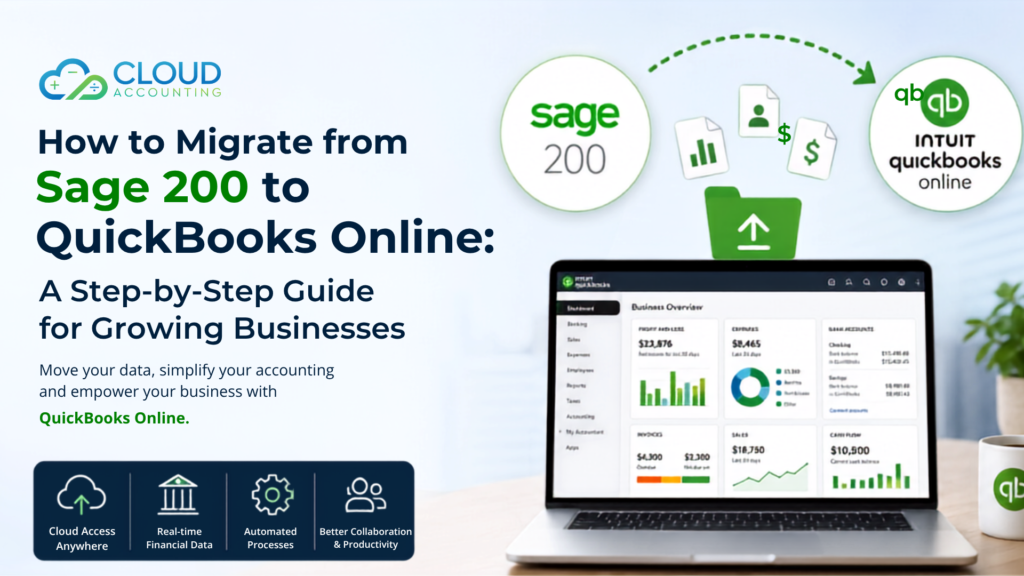
That is why many companies are considering a Sage 200 to QuickBooks Online Migration.
QuickBooks Online offers cloud-based access, automated banking features, flexible reporting, and an interface that many users find easier to navigate. However, moving from one accounting system to another requires careful planning. Financial data is one of the most valuable assets a business owns, and even small mistakes can create reporting issues later.
A successful Sage 200 to QuickBooks Online Migration is not simply about exporting data and importing it into a new system. It involves reviewing existing records, cleaning data, validating balances, testing workflows, and ensuring staff are ready to work with the new platform.
This guide explains the migration process step by step and highlights the key areas businesses should focus on for a successful transition.
Why Businesses Are Moving from Sage 200 to QuickBooks Online
Every business has unique reasons for changing software, but several common factors continue to drive migration projects.
Sage 200 remains a capable business management and accounting solution. However, some organisations find that their needs have changed over time.
Many businesses moving to QuickBooks Online are looking for:
- Greater flexibility
- Easier remote access
- Simpler user experience
- Reduced IT dependency
- Automated bank feeds
- Faster financial reporting
- Better collaboration with accountants
- Cloud-based accessibility
As companies grow, decision-makers often want instant access to financial information. Waiting for reports or relying on office-based systems can slow decision-making.
A Sage 200 to QuickBooks Online Migration helps many businesses modernise their accounting processes while improving visibility across the organisation.
Is QuickBooks Online the Right Choice?
Before starting a migration project, it is important to confirm that QuickBooks Online aligns with your operational needs.
Changing accounting software takes time and resources. Therefore, businesses should assess both current and future requirements before making a final decision.
Consider:
- Number of users
- Reporting requirements
- Inventory management needs
- VAT reporting complexity
- Multi-currency transactions
- Third-party integrations
- Growth plans over the next five years
A software migration should support business goals rather than simply solve today’s problems.
Looking Beyond Immediate Requirements
Many businesses focus only on current challenges when evaluating accounting software.
However, software decisions should also support future growth.
If your company expects increased transaction volumes, additional users, or expansion into new markets, these factors should be considered before beginning a Sage 200 to QuickBooks Online Migration.
Taking a longer-term view helps avoid future system limitations.
Step 1: Conduct a Full Data Review
The first stage of any migration project is understanding the quality and structure of your existing data.
Before exporting anything from Sage 200, review the information currently stored within the system.
This typically includes:
- Customer records
- Supplier records
- Product lists
- Account codes
- VAT settings
- Historical transactions
- Bank accounts
- Outstanding invoices
- Purchase invoices
- Inventory balances
Many businesses discover duplicate records, outdated contacts, inactive accounts, and inconsistent coding structures during this review.
Identifying these issues early improves the quality of the final migration.
A well-organised database creates a much stronger foundation for a successful Sage 200 to QuickBooks Online Migration.
Step 2: Decide What Data Will Be Migrated
Not every organisation needs to transfer all historical information.
One of the most important decisions is determining how much data should move into QuickBooks Online.
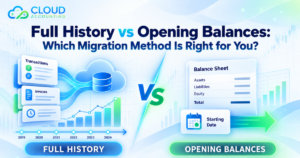
Full Historical Migration
A full migration transfers multiple years of accounting history.
Benefits include:
- Complete reporting continuity
- Historical transaction access
- Easier year-on-year analysis
- Full audit trail within one system
However, this option generally requires more preparation and testing.
Opening Balance Migration
Some businesses choose a simpler approach.
This typically includes:
- Opening balances
- Customer records
- Supplier records
- Outstanding invoices
- Outstanding bills
- Current inventory balances
This approach reduces complexity while still providing the information required for day-to-day operations.
The best option depends on reporting requirements, compliance obligations, and business goals.
Step 3: Create Secure Backups
Before exporting data, always create a complete backup of your Sage 200 environment.
This step protects your business if unexpected issues occur during the migration process.
Backups provide protection against:
- Accidental deletion
- Data corruption
- Import failures
- Mapping errors
- Human mistakes
A backup allows your business to restore information if required and ensures historical records remain accessible.
Never Skip This Stage
Many businesses underestimate the importance of backups because migration projects often appear straightforward.
However, accounting data is critical.
Having a verified backup provides peace of mind throughout the Sage 200 to QuickBooks Online Migration process.
Step 4: Export Data from Sage 200
Once your data has been reviewed and secured, the next step is exporting information from Sage 200.
Common exports include:
- Customer records
- Supplier records
- Products and services
- Chart of accounts
- Trial balance
- Open sales invoices
- Open purchase invoices
- Inventory records
- VAT information
Most exports are generated in CSV or Excel format.
These files become the foundation for data preparation and import activities.
Step 5: Clean and Prepare Data
This stage often has the greatest impact on migration quality.
Poor-quality data transferred into a new system simply creates new problems.
Before importing records into QuickBooks Online, review all exported files carefully.
Look for:
- Duplicate customers
- Duplicate suppliers
- Missing contact information
- Incorrect account codes
- Outdated records
- Inconsistent naming conventions
- Invalid VAT codes
- Formatting errors
Cleaning data may seem time-consuming, but it significantly improves reporting accuracy after migration.
Clean Data Produces Better Results
Businesses often focus on software features when planning a migration.
However, data quality is usually a much bigger factor in long-term success.
The cleaner your data is before migration, the more reliable your reports will be after the move.
Step 6: Set Up QuickBooks Online Correctly
Before importing any information, QuickBooks Online must be configured properly.
This setup stage creates the environment where migrated data will reside.
Configuration tasks often include:
- Company details
- Financial year settings
- VAT configuration
- User permissions
- Bank account setup
- Reporting preferences
- Currency settings
The chart of accounts should also be reviewed carefully.
Some account structures used in Sage 200 may require adjustment to align with QuickBooks Online reporting requirements.
Proper setup helps prevent reporting issues later.
Step 7: Import Core Records
Once QuickBooks Online is ready, import the core data first.
This usually includes:
- Customers
- Suppliers
- Products
- Services
- Chart of accounts
These records form the foundation of the new accounting system.
Importing them first ensures financial transactions can be linked correctly during later stages.
Building the Framework
Think of these records as the structure supporting your accounting system.
If customers, suppliers, or account codes are incorrect, every transaction linked to them may also be affected.
Taking extra time during this stage improves overall migration quality.
Step 8: Import Financial Information
After master records have been imported successfully, financial data can be transferred.
Depending on project scope, this may include:
- Opening balances
- Historical transactions
- Journal entries
- Outstanding invoices
- Outstanding supplier bills
- Inventory balances
This stage often requires multiple rounds of testing and validation.
The goal is to ensure QuickBooks Online reflects the same financial position as Sage 200.
A successful Sage 200 to QuickBooks Online Migration depends heavily on accurate financial imports.
Step 9: Validate and Reconcile Data
Many migration issues are discovered during reconciliation.
That is why validation should never be rushed.
Compare key reports between Sage 200 and QuickBooks Online.
Review:
- Trial balances
- Balance sheets
- Profit and loss reports
- Bank balances
- VAT balances
- Accounts receivable
- Accounts payable
Every significant balance should match before the system goes live.
Accuracy Before Go-Live
It can be tempting to launch the new system quickly.
However, resolving issues before go-live is far easier than correcting financial records after daily operations begin.
Careful validation protects reporting accuracy and builds confidence among stakeholders.
Step 10: Test Everyday Business Processes
Data accuracy alone does not guarantee success.
Businesses should also test the workflows staff use every day.
This includes:
- Creating invoices
- Recording expenses
- Processing supplier bills
- Running VAT reports
- Reconciling bank accounts
- Producing management reports
Testing helps identify configuration problems before users rely on the system.
Small Issues Become Bigger Problems Later
Something as simple as an incorrect VAT code can affect hundreds of transactions.
Testing everyday activities helps uncover these issues before they impact operations.
Step 11: Train Your Team
Technology changes are successful when people understand how to use the new system effectively.
Even experienced finance professionals need training when moving to a different platform.
Training should cover:
- Navigation
- Dashboard usage
- Customer invoicing
- Supplier management
- Expense processing
- Reporting tools
- Bank reconciliation
- User permissions
Providing structured training improves user confidence and reduces errors.
Software Does Not Create Success on Its Own
A migration project is about more than technology.
People play a crucial role in the outcome.
When employees understand how QuickBooks Online works, they are more likely to embrace the change and use the platform effectively.
Step 12: Go Live and Monitor Performance
Once testing and training are complete, the business can begin using QuickBooks Online as its primary accounting system.
The first few weeks are especially important.
Monitor:
- Bank reconciliations
- Customer invoices
- Supplier bills
- VAT calculations
- Financial reports
- User activity
Regular reviews help identify potential issues before they affect reporting accuracy.
The First Month Matters Most
Many migration-related issues appear during the first few weeks of operation.
Close monitoring allows businesses to resolve concerns quickly and maintain confidence in the new platform.
Common Challenges During Sage 200 to QuickBooks Online Migration
Even well-planned projects can encounter obstacles.
Understanding common challenges helps businesses prepare more effectively.
Data Mapping Problems
Different systems structure information differently.
Incorrect mapping can affect reporting and account balances.
Duplicate Records
Duplicate customers and suppliers can create confusion and reporting errors.
VAT Issues
Incorrect tax setup may result in inaccurate VAT reporting.
Inventory Complexity
Inventory-heavy businesses often require additional planning and validation.
Historical Data Decisions
Choosing how much data to migrate can be difficult.
Businesses must balance reporting needs with project complexity.
How Long Does a Sage 200 to QuickBooks Online Migration Take?
Migration timelines vary depending on several factors.
These include:
- Data volume
- Number of users
- Historical records required
- Inventory complexity
- Data quality
- Reporting requirements
Simple migrations may take a few days.
Larger projects involving extensive transaction history may require several weeks.
A detailed assessment at the beginning helps establish realistic expectations.
Best Practices for a Successful Migration
Businesses that achieve the best outcomes usually follow a structured process.
Recommended best practices include:
- Review data thoroughly
- Clean records before exporting
- Create verified backups
- Configure QuickBooks Online correctly
- Test imports carefully
- Reconcile balances fully
- Train users properly
- Monitor performance after launch
These steps significantly reduce risk and improve migration quality.
How Cloud Accounting Can Help
A Sage 200 to QuickBooks Online Migration involves more than moving data.
It requires planning, preparation, validation, testing, and support.
Cloud Accounting helps businesses through every stage of the process.
Our specialists assist with:
- Migration planning
- Data assessment
- Data cleansing
- Account mapping
- Financial reconciliation
- User training
- Post-migration support
Whether your migration is simple or highly complex, our team helps ensure your financial data remains accurate and your business continues operating with minimal disruption.
Final Thoughts
A Sage 200 to QuickBooks Online Migration can provide growing businesses with greater flexibility, cloud access, improved collaboration, and better visibility into financial performance.
However, success depends on preparation.
Businesses that take time to review data, clean records, validate balances, and train users are far more likely to achieve a positive outcome.
Migration is not just a software change. It is an opportunity to improve financial processes, strengthen reporting accuracy, and create a foundation for future growth.
Planning a Sage 200 to QuickBooks Online Migration?
Cloud Accounting helps businesses migrate with confidence. Our migration specialists manage the process from planning and data preparation through to validation and post-migration support. Contact our team today to discuss your requirements and receive a tailored migration plan for your business.